SourceTree
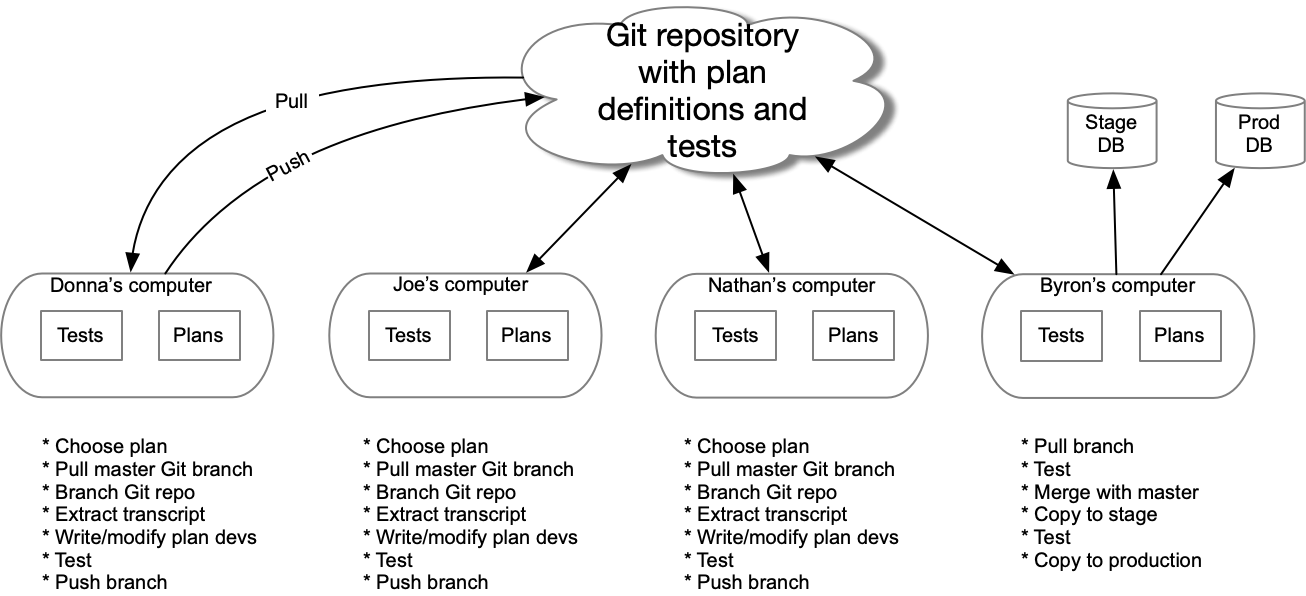
SourceTree is how we keep track of what we’ve done and allow multiple people to work on writing plans at the same time.
Basic git workflow
- Check out the
mainbranch. Main is a special branch; you can’t update it but it’s where all our changes will eventually be merged and then pushed to production. - Pull any updates from
git.uwaterloo.ca. - Make a branch for the current task. This isolates your changes from other changes.
- Make your changes.
- Edit
- Test
- Consider committing your changes as you reach milestones in the work or before making a change that you’re not 100% confident in and may want to abandon.
- Repeat
- Commit your changes with a meaningful message.
- Push your changes to
git.uwaterloo.ca. - Let Byron know that you have changes to merge into the master and put into production.
It’s possible that while you’re working on one task you need to wait (for example to get an answer from someone on vacation). You can make another branch for another task and work on it while waiting. There is a process for switching branches.
Basic git skills
Checkout
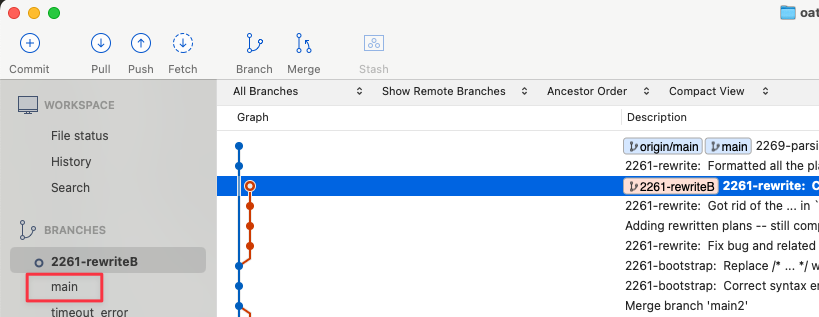
Checking out a branch makes it ready for you to work on it. Simply double-click the name of the branch
in the left pane of SourceTree.
In this image, branch 2261-rewrite is curently checked out. Double-clicking main will check out that branch.
Pull
Pulling gets changes from the git.uwaterloo.ca server that you may not have yet. You pull the changes
for the current branch. In the image above, the origin/main in the Description refers to what’s on the
server’s copy of the main branch. The main refers to what’s on your machine. Clicking Pull will
download the changes from the server.
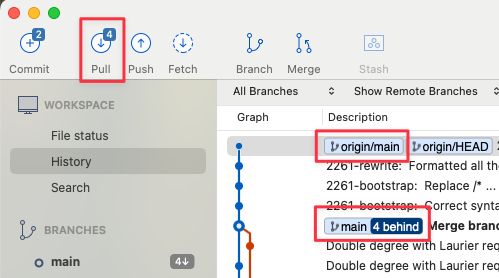
You are not allowed to pull if your copy of the branch has uncommitted changes.
Branch
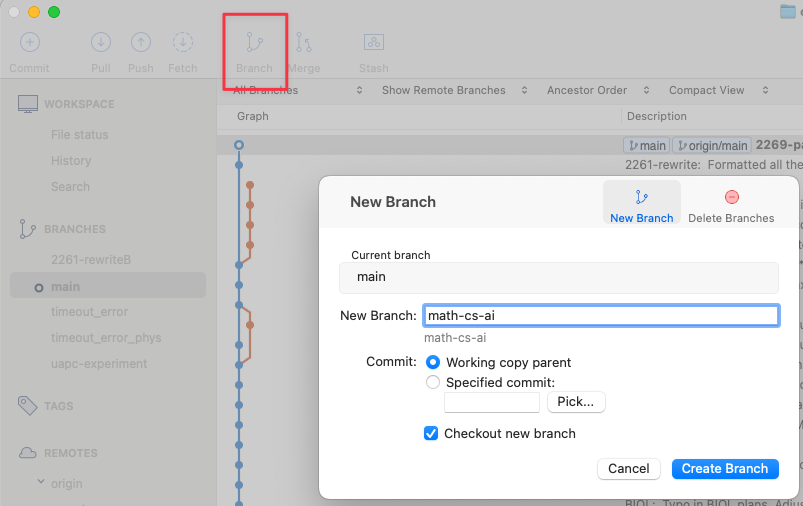
“Branching” is making a copy for a specific purpose/update. Once you’re done with the branch (testing and all!)
it will get merged into main. In general, you should branch off of main, so check it out and pull to make
sure it’s up to date. Then click the branch icon. You’ll need to give it a name. It should definitely start
with a faculty (ahs, arts, eng, env, math, sci), a dash, and then a very brief identifier.
Commit
“Committing” your changes simply makes a snapshot that you can come back to. Commit by clicking
the Commit button in the upper left corner. You’ll be asked for a brief description of what
you’ve done.
If you later make changes that you’re not happy with, chose a commit that you were happy with. Right-click
it and choose Reset ... to this commit. You’ll be asked whether you want a “hard”, “soft” or “mixed” mode.
Choose “hard”.
Push
Pushing your changes means they get copied to the git.uwaterloo.ca server. Someone else (e.g. Byron) can
then check them out, test them, make suggestions, and possibly move them into production.
You will definitely push your changes when you think you’re done. You might push them earlier to back them up or to allow someone else to see them.
Insert image