Back to Contents Page
Setting Up the Image Server: Dell OpenManage™ Remote Install User's Guide
The following diagram summarizes the Remote Install system and network
installation requirements and shows the major steps in setting up the image
server.
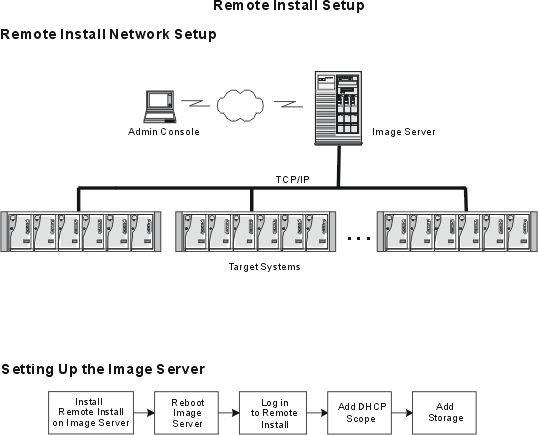
The image server manages images for the Remote Install system.
- The Dell DHCP server is installed on the image server along with Remote
Install. This DHCP server detects and autodiscovers only supported target
systems.
- Adding storage to the image server is similar to mapping a network share
directory to a system running Windows. You must define a network share
directory before adding storage.
- Dell OpenManage software may not allow you to install the Remote
Install application on a nonsupported system.
See "System Requirements" for
comprehensive requirements for the image server.
 |
NOTICE: Do not attempt to upgrade an image server or target system
while Remote Install is provisioning a system or any target systems are in
transitional states. Ensure that Remote Install is not active while an upgrade
is occurring. For descriptions of transitional states, see
"Systems→ Properties→ List." |
|
NOTICE: If you
change the IP address of the image server while using Remote Install, you
must reboot the image server to continue using Remote Install.
Also, if storage resides on the image server for which you change the IP
address, that storage will not function properly. If you must change the
image server IP address, use the Settings→ Storage→ List
→ Edit function
to change the storage IP address to that of the image server. |
 |
NOTE: Do not install Remote Install on a system that
is running the Microsoft Remote Installation Service (RIS). RIS runs a TFTP server that prevents the Remote Install
DHCP server from responding to a PXE request from the target system.
It is acceptable for the two services to be installed on different systems on the same subnet. In this scenario, RIS answers the PXE request first, but ignores any other requests if its reply is ignored. Remote Install is then able to provide an address
in response to the second PXE request. |
|
NOTE: Reinstalling the
same version of Remote Install on an image
server erases the records of stored images and configurations in the Remote
Install database, but the image files remain in the file system. If you
create storage share directories which use the same paths as were used in
the previous installation, Remote Install will automatically import the
images it finds in those directories. If you have problems recovering
image data after a reinstallation, see
"Recovering Remote Install Images From a
Corrupted Image Server Database."
Installing a new version, such as installing Remote
Install version 1.1 on an image server that has Remote Install version 1.0 installed,
preserves stored images and configurations.
|
Remote Install is located on the Systems Management CD. Perform the following
steps to install Remote Install version 1.1, whether or not the system already
has an earlier version of the software:
- Log on to a system that you want to use as the Remote Install image
server.
Ensure that you have Administrator privileges on the system.
- Close any open applications and disable any virus scanning software.
- Insert the Systems Management CD into the CD drive on the system.
The setup program starts up automatically. If it does not, click the Start
button, click Run, and then type the following line into the text
field:
x:setup.exe
where x is the drive letter of your CD drive. During the installation
process, click Back to go back to the previous step or click Cancel
to exit the installation process.
- The Welcome to Dell OpenManage System Management Installation
page appears.
You can click Next.
The page disappears automatically after a few seconds if you do not make
a selection, and the Dell Software License Agreement page appears.
- Click Accept on the Dell Software License Agreement page.
The system displays a message about preparing the installation wizard.
- From the Select System Type menu, select Install Management
Station or Upgrade Management Station.
- Click Custom Setup or Custom Upgrade.
- If this is a new installation, select the destination directory. For an
upgrade, continue with the next step.
- From the Management Station Software menu, ensure that Remote Install
is selected and deselect any other software that you do not want to install
at this time. Click Next.
- On the Installation Summary page, click Next.
- In the Confirm Install dialog box, click Yes.
- When the installation finishes, click Yes, reboot my system now and
then click Finish.
- Click OK to confirm the reboot of the system.
- After reboot, log in to the system with Administrator privileges.
- Insert the Systems
Management CD into the CD drive on the image server.
The setup program starts automatically. If it does not, click the Start
button, click Run, and then type the following line into the text
field:
x:setup.exe
where x
is the drive letter of your CD drive.
During the uninstallation process, click Back to go back to the
previous step or click Cancel to exit the uninstallation process.
- The Welcome to Dell OpenManage System Management Installation
page appears.
You can click Next. The page disappears automatically after a few seconds if you do not make
a selection, and the Dell Software License Agreement page appears.
- Click Accept on the Dell Software License Agreement page.
- From the Select
System Type menu, click Uninstall (this option is available
only if a Dell OpenManage application was previously installed).
- On the Uninstall selection page, ensure that Remote Install
is selected
and deselect any other software that you do not want to uninstall at this
time, and then click
Next.
- On the Uninstall Summary page, click Next.
- In the Confirm Uninstall dialog box, click Yes.
- When the uninstallation finishes, select Yes, reboot my system now and then click
Finish to confirm that you want to reboot the system.
|
NOTE: You must
perform this task using Remote Install. Start the Dell OpenManage
systems management software solution from the icon on your desktop.
When the main menu appears, select Remote Install.
|
You must have at least one DHCP scope (IP address range) for
operations that boot target systems. To add a DHCP scope, perform the following
steps:
- Determine if another DHCP server is running.
Only one DHCP server must be running on the management
network. Stop any
other DHCP servers. If this is not possible or not desirable, see "Coexistence of Multiple DHCP and PXE
Servers."
- Click Settings.
- Click Add.
- Enter the following parameters:
|
NOTE: (*) indicates a required field or task.
|
- Scope Name (*) — The name of the scope.
- Type (*) — The type of the DHCP scope supported. Two types exist: General
Purpose and System Management.
Remote Install uses scopes of the General Purpose type to PXE
boot the target systems. Remote Install
temporarily assigns this IP address to the target systems when they are
discovered. The IP
address of a target system running with an operating system is assigned during the
configuration process, not by the DHCP server.
Remote Install uses scopes of the System Management type only to
assign IP addresses to the ERA/MC, which is the remote access controller
on the PowerEdge 1655MC.
|
NOTICE: You must not assign systems to IP addresses within DHCP
scopes that are assigned to Remote Install. Doing so can cause
unpredictable behavior.
|
- Starting IP Address (*) — The beginning IP address of a scope.
- End IP Address (*) — The ending IP address of a scope.
- Subnet Mask (*) — The subnet mask of a scope.
- Gateway IP (optional) — The IP address of the router.
- Click Add.
To delete a DHCP scope, perform the following steps:
- Click Settings.
- On the List of DHCP scopes page, click a DHCP scope under Scope Name.
- On the Edit DHCP scope page, click Delete.
As part of Remote Install setup, you must configure the storage used to store
images and RAID packages. See "Configuring Storage"
and "Configuring RAID" for more
information.
Back to Contents Page
